 Swisstoggel KNX
Your KNX home, straight from your phone
Control lights, blinds and heating directly through your KNX IP interface. No server, no account, no cloud.
Swisstoggel KNX controls your KNX installation directly on your home network, through any KNX IP interface or KNX IP router from any manufacturer. Rooms and functions come straight from your ETS project. No extra server and no user account needed.
Coming soon – sign up for the test now and be among the first to try it.
Explained in one minute
Set up, control, your own look, group monitor: a short tour of the app.
The video starts muted. Also available on YouTube.
What Swisstoggel KNX can do
Everything here is built into the app.
- Set up in minutesFind the interface automatically, take rooms and functions from your ETS project (.knxproj), test the connection before saving.
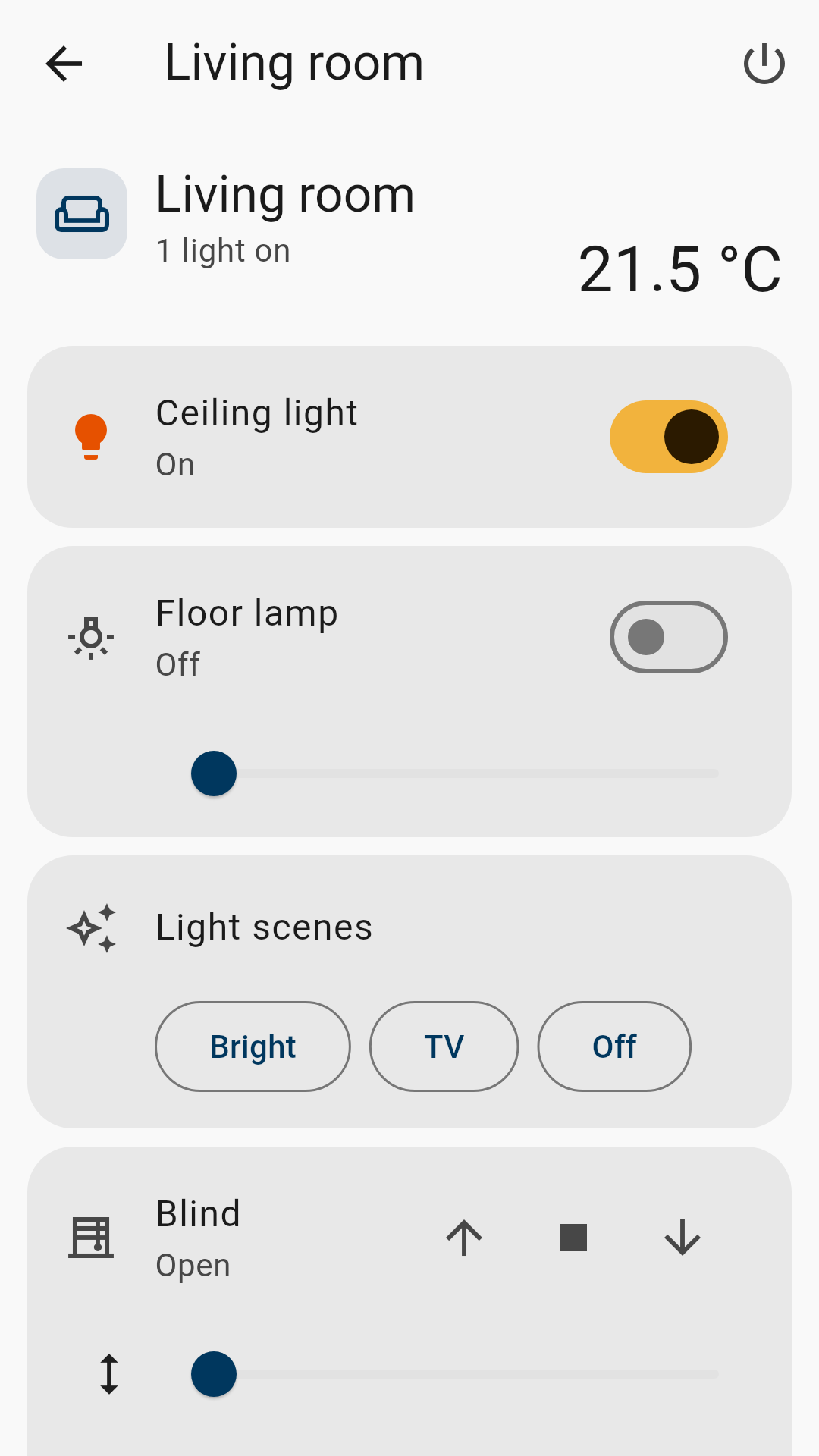
- Control everythingSwitch and dim lights, colour (RGB/RGBW) and colour temperature; blinds and shutters with position and slats; heating with setpoint and operating mode; fans, scenes, push buttons, sensor values and text displays. Switches get a fitting symbol, for example for locks, releases, garage door, alarm or irrigation.
- Overwrite valuesNot just display values such as thresholds, setpoints or meter readings, but set them yourself if you like, with unit and plausibility check.
- Floor plan with layersAdd the plan of each floor as an image or PDF, even large electrical plans; the app cleans it up automatically, crops it if you like and removes the installation from electrical plans. Or trace a clean plan with your finger. Turn your phone sideways and you see all lights, blinds or heating with their current state at a glance. Pinch to zoom, tap a symbol to control it.
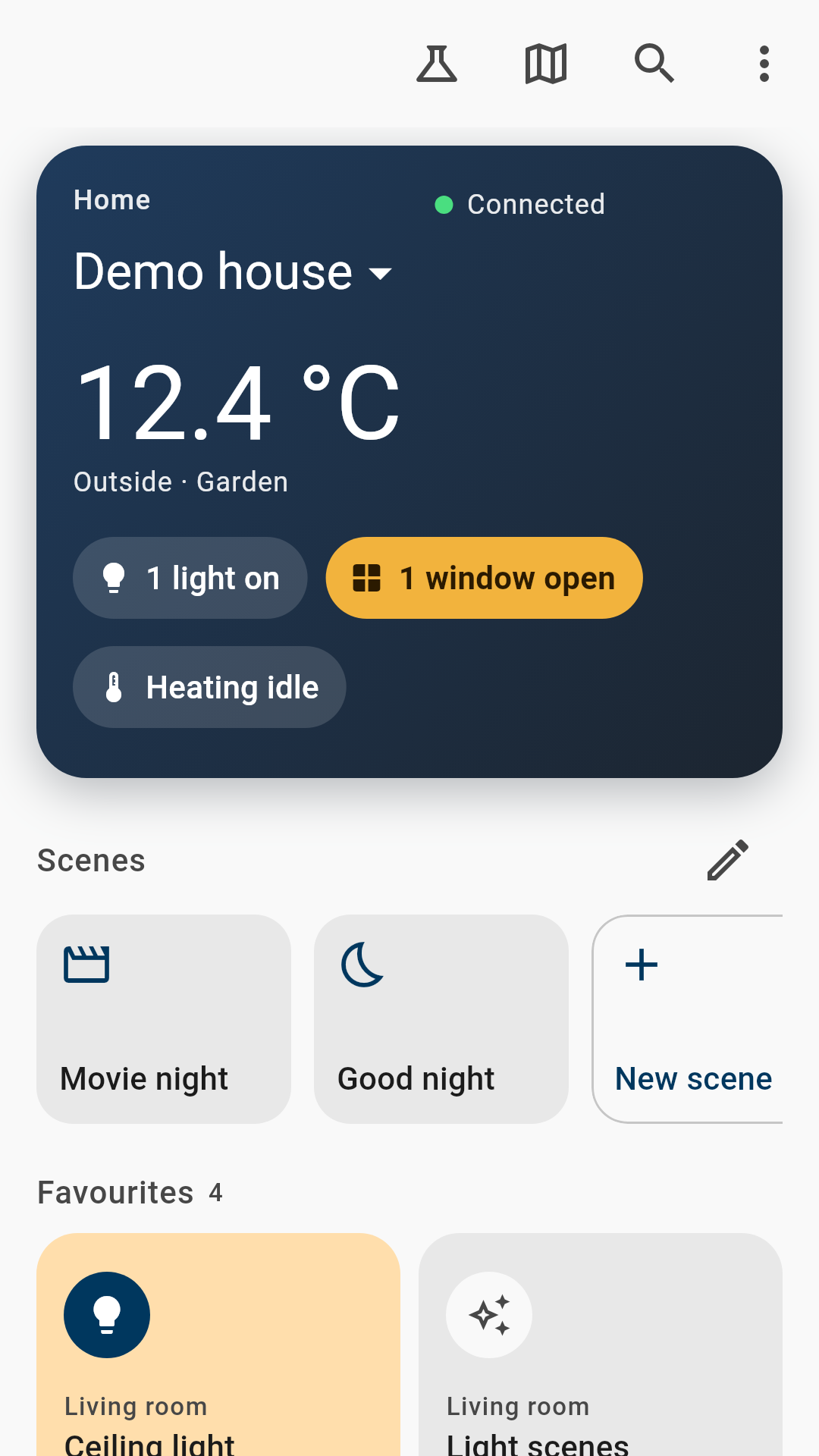
- Overview on the start pageOutdoor temperature from a sensor of your choice, what's switched on, open windows, alarms, favourites, “All lights off” for a room or the whole house. You choose what the card at the top shows.
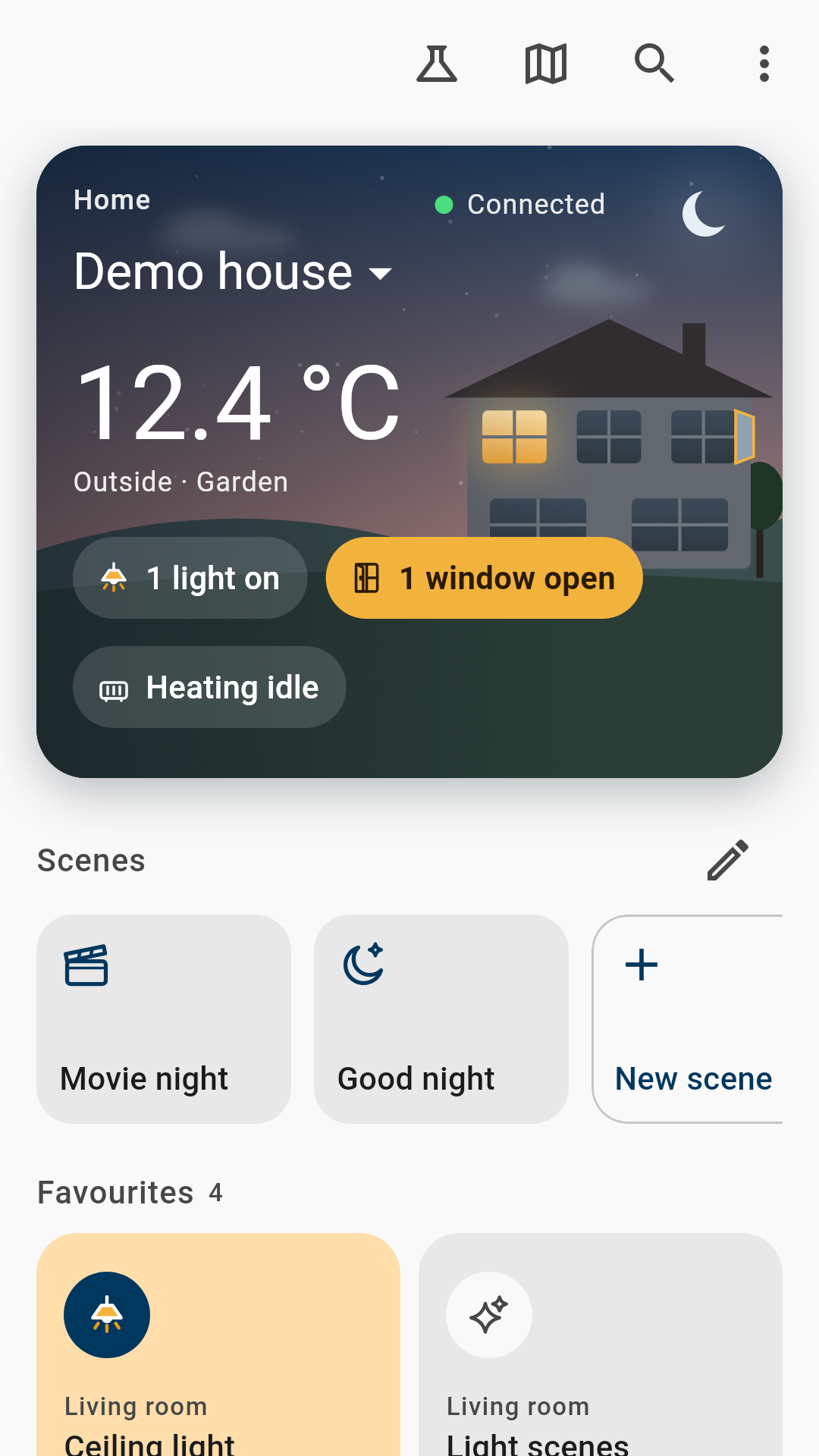
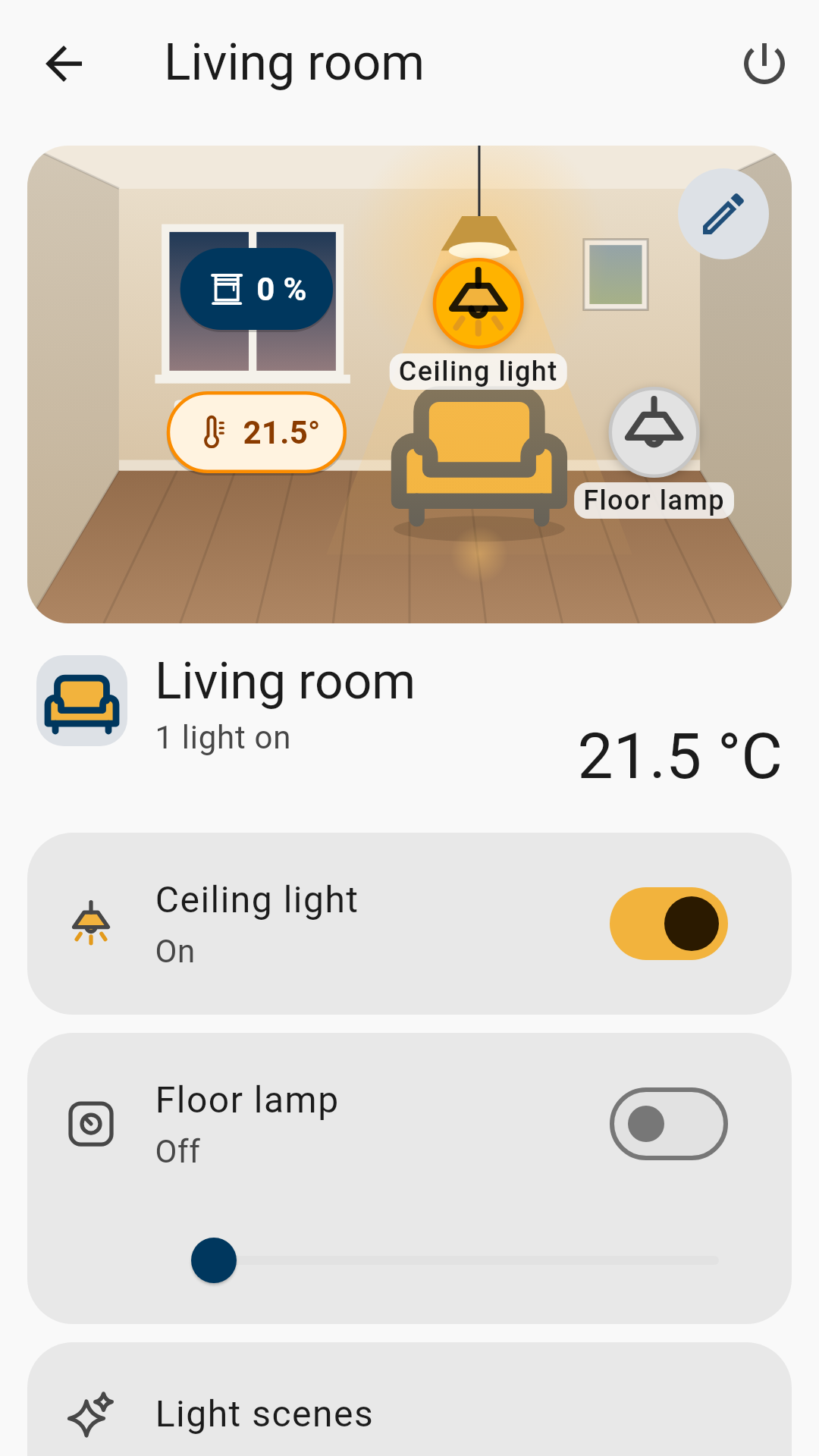
- Make it your ownUnder Settings › Appearance you choose how the app looks: Swisstoggel symbols that show at a glance what is on; the living house with lights, blinds, weather and time of day; lamps that glow on the floor plan; and room pictures with your own photo or a drawing that you control right in the picture.
- Your own scenesSeveral functions with one tap, even without opening the app: from the app icon, as a widget on the home screen, by voice command or with an NFC sticker at the door.
- Wall tabletAn old tablet on the wall becomes a control centre: full screen, the display stays on, and after two minutes without a touch it returns to the start page or the floor plan and dims.
- SecureKNX IP Secure and KNX Data Secure. Keys stay in the device's secure storage. No ads, no analytics, no data to third parties.
- For professionalsTunnelling over UDP and TCP, routing, diagnostics report, export your setup and transfer it to another device. The group monitor shows every telegram with a readable value and, in colour, where the name comes from: from the app, from the ETS project or a name of your own. Name unknown addresses right there.
- Feedback straight from the appReport bugs, ideas and questions via “Send feedback” in the menu, optionally with app version and device. For connection problems, “Report a problem” under “Diagnostics” attaches the diagnostics report. Or use the contact form.
Try it without an installation: the demo mode shows a complete flat. It's free.
Requirements: a KNX IP interface or KNX IP router on the same network. Away from home via VPN into your home network.
What it looks like
Views from the demo mode, on phone and tablet.
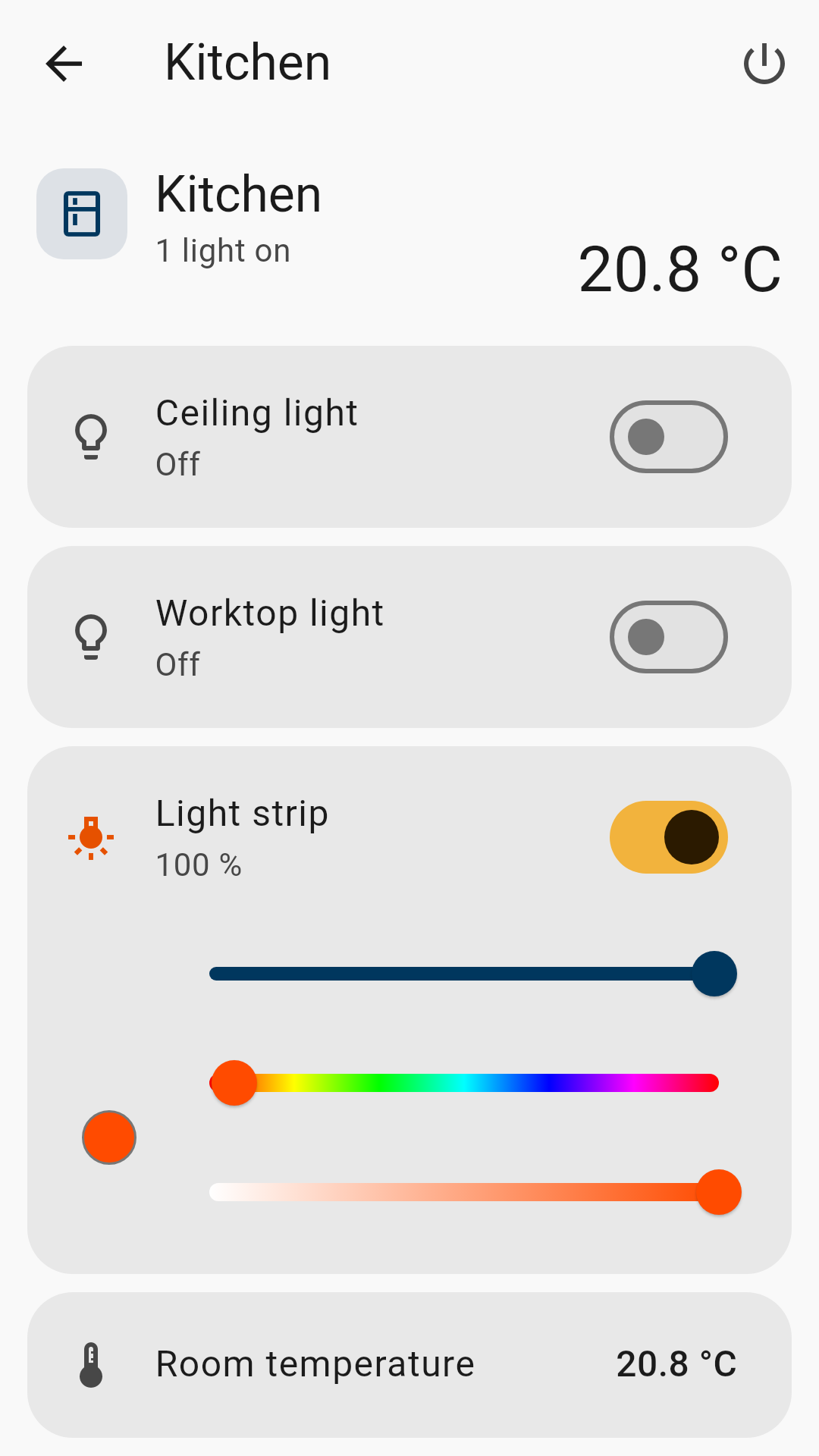
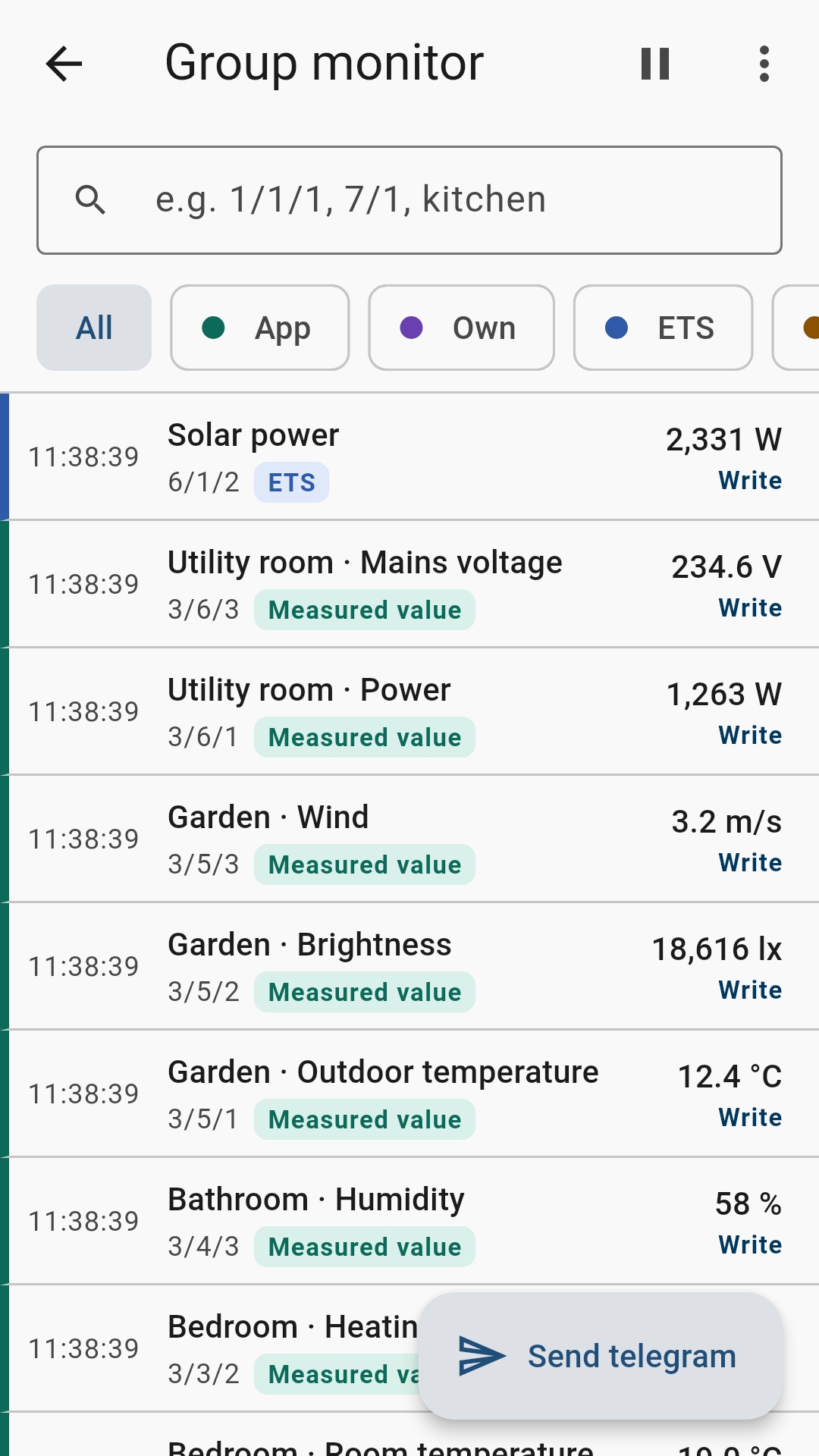
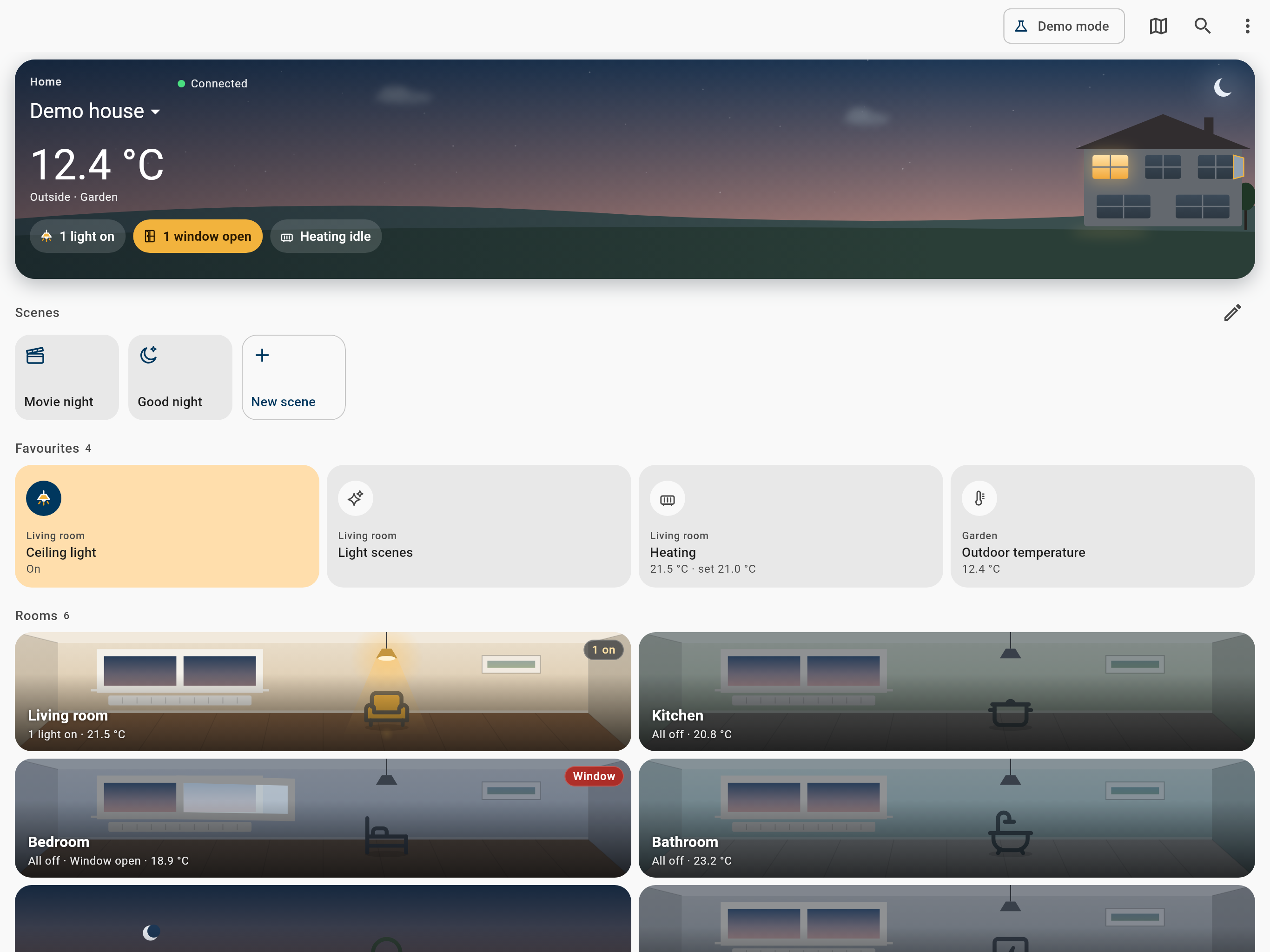
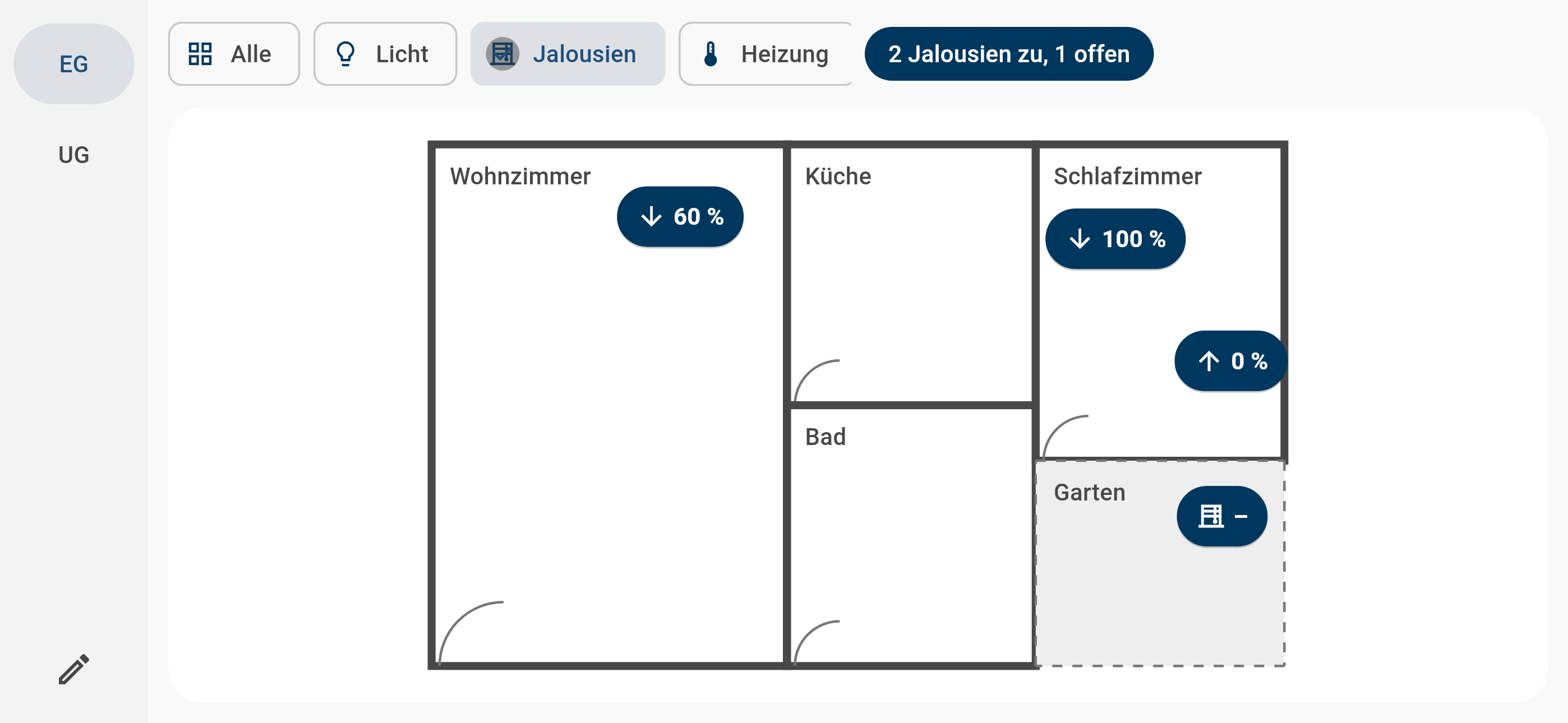
Floor plan with layers
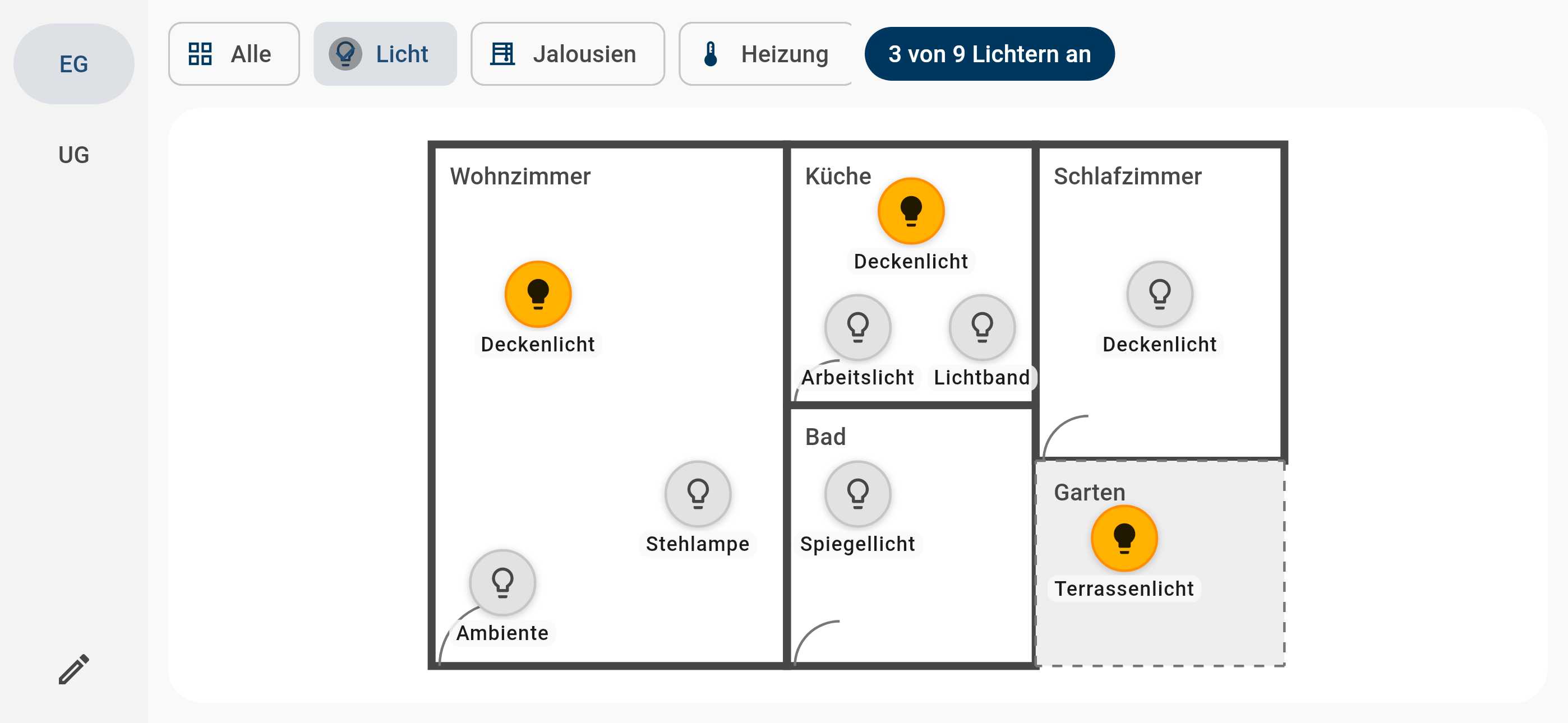
The layers lights, blinds, heating and windows are already there; add and name your own. At the top you see what's going on, for example “3 of 7 lights on”. Choose between floors on the left. Views from the demo mode (shown in German).
That's all it takes
Phone, Wi-Fi, KNX IP interface, bus. Nothing else in between. The app only shows what the bus has confirmed – no guessed states, no delays via third-party servers. Away from home you connect to your home network via VPN, as your router already offers.
All features in detail
Every feature in this list is built and tested. What the app can't do is listed honestly further down.
Connection
- Any IP interface, any manufacturerTunnelling over UDP or TCP, routing via multicast with configurable source address.
- Search the networkThe app finds your interface by itself. Or enter IP and port manually and test the connection before saving.
- Reconnects by itselfAfter a Wi-Fi change or standby the app is back. In the background it releases the tunnel for others.
- “What to do?” on errorsConcrete steps for each cause instead of an error number.
- Change the connection without setting up againNew interface, same rooms and functions.
- Away from home via VPNNo cloud detour: you reach your home network through your own VPN.
Setup & ETS import
- Import your ETS project.knxproj from ETS4, ETS5 and ETS6, also password-protected. Or a group address export as XML.
- Rooms and functions are suggestedYou review and deselect instead of creating everything by hand.
- Re-importing is gentleOnly new items are added, renumbered addresses follow along, favourites and scenes stay.
- ChecksData types checked, addresses missing from the project, addresses without a function.
- Create functions by handWith address selection from the ETS project, group addresses in two or three levels or free. Every address of a room controller is briefly explained, and a group address may appear in several functions.
- Organise it your wayRename, sort and move rooms and functions, choose symbols.
- Several projectsHome and holiday home, or several customer installations – with “Switch project”.
- Export your setupTransfer it to another device as a file, including floor plans but without passwords and keys. Ideal for a new phone or for the handover from the electrician to the customer.
Control
- LightsSwitch, dim (slider or press and hold), tunable white, RGB and RGBW with free colour choice.
- Blinds, shutters, venetian blindsUp, down, stop, position, slat angle – and “All blinds” in a room.
- HeatingSetpoint and room temperature in 0.5 °C steps, operating mode comfort, standby, night, frost protection, valve position. “All rooms to …” with one tap.
- VentilationOff and up to eight levels.
- Push buttons and triggersGarage door, door opener – with confirmation if you like.
- Lights offPer room or for the whole house. Sockets and appliances stay on.
- Only confirmed statesWhat you see is what the bus reports. Without a connection the controls are locked – no blind switching.
- Switches with a fitting symbolOn/off as light, socket, lock, release, heating, ventilation, water, garage door, door, bell, alarm, music, TV or garden, with a matching state text (“Locked”, “Released”, “Open” …).
Visualisation
- Floor plan with layersOne plan per floor as PNG, JPG or PDF page. When adding it, the app trims empty margins and makes the lines clear. For coloured electrical plans, “Without electrical” removes wiring, symbols, dimensions and text and keeps walls, doors, windows and furniture; “Walls only” keeps just the walls and fills them. With “Trace plan” you draw walls, windows, lines and furniture over the faded original; walls snap straight and at corners, and you can keep editing the drawing later. You can also keep the original. With “Crop” you keep just the part you need, for example without title block and legend, even later on: placed functions stay where they are. In the dark theme the plan adapts. You place functions with a tap and move them by dragging. On the phone, landscape shows the floor plan instead of the start page. The app shrinks large plans itself when adding them; pinch to zoom in the plan. The app reads PDF pages twice as sharp and crops first so that details are kept.
- Start page with overviewOutdoor temperature (tap it to choose the sensor or hide it), lights on, windows open, rooms heating, alarms – plus favourites and the room list with temperature. You decide which indicators show at the top and in which order.
- Living houseThe card at the top of the start page shows your house: windows light up where a light is on, blinds move along, sun, clouds, rain and wind follow the weather sensors, and day, evening and night follow the clock. Tap a window to open the room. A long press opens “Design house”: floors, rooms, roof, tree and which sensors show the weather.
- Light on the floor planLamps that are on glow warmly on the floor plan, especially nice in the dark theme.
- Room picturesEvery room gets a picture: a drawing that gets lighter and darker with the light, or your own photo. Place the functions in the picture and control them there.
- Wall tablet modeSwitch it on in the settings: full screen, the display stays on. After two minutes without a touch the app closes all pages, shows the start page or the floor plan and dims behind a clock. A tap wakes it without switching anything.
- Sensor values with unitsTemperature, humidity, brightness, global radiation, wind, air pressure, CO₂, power (including feed-in), current, voltage, meter readings, volume, flow. Can be overwritten if you like, on the same or a separate group address.
- Contacts and messagesWindow and door contacts, alarms (rain, smoke), presence, text messages such as a heat pump fault.
- HistoryLine with minimum, maximum and current value since the app was opened.
- Search“kitchen light” or “1/2/3” – finds rooms, functions and group addresses, ready to control.
- Always up to dateValues are re-read by pulling down and when you return to the app.
Scenes
- Recall KNX scenesA long press stores the current state in the actuators.
- Your own app scenes without ETSSeveral functions with one tap – “Movie night”, “Good night”.
- Capture a room's stateThe current state becomes a scene.
- ShortcutsA long press on the app icon shows the first four app scenes.
- Widget and quick settings tiles (Android)The “Scenes” widget on the home screen shows four scenes, the tiles “Scene 1” to “Scene 3” in the quick settings one each.
- Voice commands“Hey Google, open Good night in Swisstoggel KNX” or “Start Good night with Swisstoggel KNX” (Siri).
- NFC stickersWrite a scene to an NFC sticker (NTAG213 or larger), hold your phone to it, and the scene runs. On the iPhone via an automation in the Shortcuts app. All ways briefly open the app, and the scene runs as soon as the connection is up. Scenes that switch a door, a garage door or an alarm ask first when started this way.
Security
- KNX IP SecureTunnelling and routing encrypted – can be mixed with unsecured addresses.
- KNX Data SecureSecured group addresses are handled correctly.
- Keys from the ETS keyringLoad the .knxkeys file – done.
- Keys stay on the deviceOnly in the iOS Keychain or Android Keystore. They never leave the device, not even when exporting.
- Warning for a wrong backbone keySo you don't search for hours.
- Note when the device code is missingIf a KNX Secure tunnel is set up without a device code, the app tells you that the interface cannot be verified this way.
For electricians and integrators
- Group monitorThe last 500 telegrams with readable values. A colour stripe shows where the name comes from: green from the app, blue from the ETS project, purple a name of your own, orange unknown. Filter by origin and type, the search takes several addresses at once (“1/1/1, 7/1, kitchen”). Pause, clear, share as CSV.
- Send telegramsWrite or read request to any address: on/off, percent, temperature, scene, number, text, raw hex data.
- Name addressesA tap on a telegram shows sender, raw data and the history of this address. Give it a name of your own, create a function or send to it directly.
- Status checkReads every function once and shows which addresses don't answer – with a hint about the missing read flag.
- Diagnostics reportFor sharing, without names, passwords and keys.
- Handover to the customerExport the setup, the customer imports it – several customer projects in one app.
Language, design, accessibility
- German and EnglishGerman in Swiss spelling.
- Light and darkFollows the system or your choice. Calm colours in night blue and graphite, what's switched on glows warm yellow.
- Own symbolsOptionally the Swisstoggel symbols: each with an off and an on look, so you see what is switched on without reading.
- Phone and tabletTwo to three columns on the tablet, portrait and landscape.
- Large text and screen readersThe app stays usable.
- Demo homeLiving room, kitchen, bedroom, bathroom, garden, utility room with a simulated bus – try it without an installation of your own.
Buy once, no subscription
The app is funded by a one-time purchase. No ads, no subscription, no data to third parties. The free version is enough to set everything up and try it out.
Free
To get to know it and set it up
- Complete demo home, with floor plan
- Set up and import everything
- Control 5 functions
- Sensor values and text displays always visible
- One project
Full version
One-time in-app purchase
- Control all functions, unlimited
- Several projects
- Floor plan with layers
- All future updates included
- No ads, no subscription
Honest limits
So you're not disappointed: this is what the app can't do at the moment.
Remote access via a cloud
No, deliberately not. Away from home you reach your home network through your own VPN. That way the installation stays under your control.
Push notifications and schedules
Not yet. In a KNX installation, schedules and logic are usually handled by the installation itself. Widgets are currently only available on Android.
Permanently stored history
The history of sensor values covers the time since the app was opened. There is no long-term recording.
Controllers that only know a setpoint shift
Not supported at the moment. The heating control expects an absolute setpoint.
What data does the app collect?
None. No account, no server, no analytics or crash reporting. Everything is in the privacy policy of Swisstoggel KNX.